The Second Screen: Give Each Display a Distinct Job
A second monitor helps when it has a clear role. Assign the displays, set their physical positions, and give each one a few deliberate window zones.
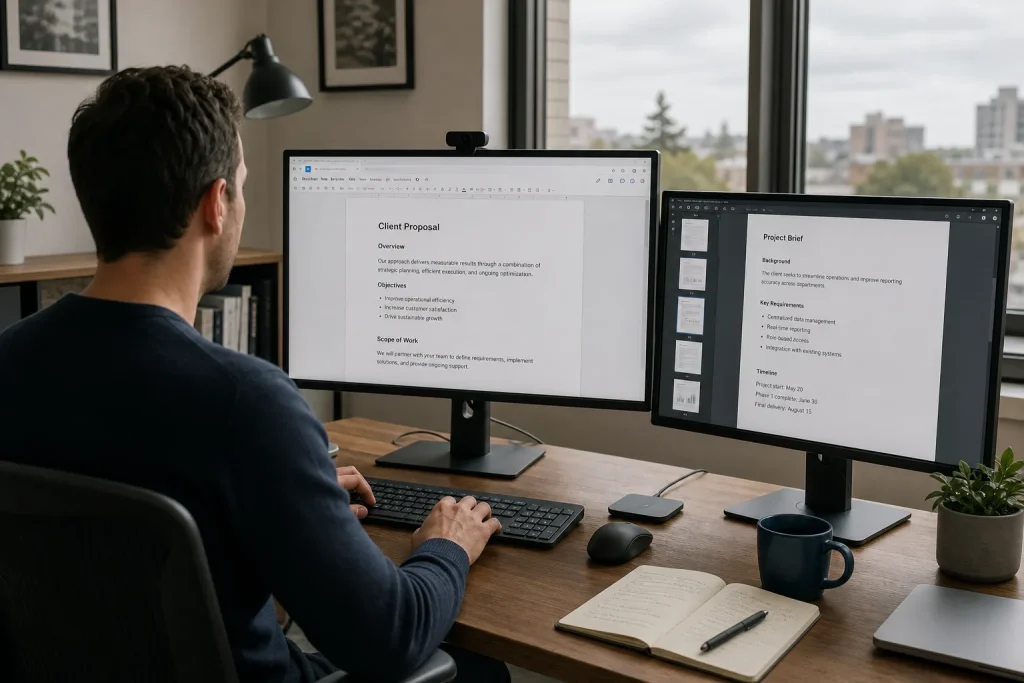
A second monitor can add clutter when both screens compete for the same attention. Give the primary display the task that needs decisions and the other a supporting role: reference material, communication, or a status view. Then arrange the screens and windows so the distinction holds through an ordinary workday.
The goal is not to keep every app visible. It is to reduce the small interruptions caused by switching contexts without turning peripheral vision into a permanent notification feed. If a window does not support the current task, it does not earn a place on the spare screen.
Both screens keep asking for attention
What it looks like: You glance between monitors, open the same document on both, or leave several unrelated apps visible because there is room. The second display is busy, but work does not feel simpler.
What usually causes it: The screens have no assigned roles. A monitor is a surface, not a task plan. If both displays are treated as general-purpose desktops, every open window can compete for focus.
What to try:
- Pick the activity that occupies the main display. For writing, that may be the draft. For spreadsheet work, it may be the sheet being edited. For design, it may be the canvas or working file.
- Choose one supporting role for the second display. Common choices include source material, a project brief, a calendar, a chat window, or a status panel.
- Move anything that does not serve either role to another workspace, minimize it, or close it.
- Work through a normal task and notice which window you consult. If you rarely use the supporting window, replace it with one that answers a recurring question.
Say you are preparing a client proposal from a brief. Put the proposal document on the primary display and the brief on the second. The expected result is that you can check requirements without searching through open windows, while the draft remains the place where decisions and edits happen. If you also leave chat, a calendar, and a music player open there, the reference role is no longer clear.
Assign the second screen to one supporting job at a time.
The monitors do not line up with your posture
What it looks like: You twist your neck repeatedly, lean toward one display, or find that the cursor seems to vanish between screens. The windows may be sensible, but the physical layout makes them awkward to use.
What usually causes it: The screens are placed according to available desk space rather than how often each one needs attention. A supporting display directly in front of you can pull your body toward it. A primary display off to the side can make routine work feel like a series of small turns.
What to check and adjust:
- Check whether the primary display is in front of your usual seated position. If it is, keep it there; if it is off to the side, reposition it so the work needing sustained attention faces you.
- Check whether the supporting monitor sits beside the primary display. If the placement works with your desk and dominant hand, keep it; if it forces an awkward reach or turn, try the other side.
- Check whether you can look at both screens without repeatedly lifting your chin or bending your neck. If so, keep their height and angle; if not, adjust them to a more comfortable position.
- Check whether the screen rectangles in your operating system match their physical positions. If they do, leave the layout; if not, rearrange the rectangles to reflect the desk.
- Move the pointer across the seam. If it crosses at the expected height, keep the virtual arrangement; if it hits an invisible wall or jumps, adjust the screen rectangles and try again.
- Notice whether neck or eye strain persists. If it does, seek advice from a qualified clinician or ergonomics professional; if it does not, continue with the comfortable arrangement rather than adding equipment by default.
Exact ergonomic adjustments depend on the desk, chair, eyesight, and any existing discomfort. Persistent strain calls for qualified advice, not a more elaborate monitor stand.
Keep the display that deserves your direct gaze in front of you.
Windows land in the wrong place
What it looks like: An app opens on the supporting monitor when you expected it on the primary one, or a window appears partly offscreen after undocking a laptop. You spend time dragging windows around before beginning the task.
What usually causes it: Many systems remember a window’s last position. Docking changes the arrangement, and the computer may restore the saved position to a display that is no longer connected. Window placement tools can help, but only after the physical and software layouts agree.
What to check and adjust:
- Check whether the operating system recognizes the intended monitors. If it does, continue; if it does not, reconnect the display or check its cable before arranging windows.
- Check whether the display map matches the desk. If it does, keep it; if it does not, drag the screen rectangles into the correct order.
- Check which display is marked primary. If it is the one where you want new windows and menus to appear, keep the setting; if not, choose the intended primary display. App behavior can vary.
- Move a window to its intended screen, resize it, and close the app there. If it returns to that position next time, keep the arrangement; if not, adjust it again or use a window manager.
- Check whether built-in snapping is enough for recurring layouts. If it is, use it to place windows in zones; if it is not, consider a trusted window utility, such as Snap layouts on Windows or a tiling option or utility on macOS.
- After connecting or disconnecting a laptop, inspect the display map before opening a full set of apps. If it matches the current setup, open the apps; if it does not, correct the map first.
Do not build complicated automation around a display arrangement that changes every day. If your laptop is sometimes docked and sometimes used alone, keep a modest docked layout and a simple fallback for the single-screen setup.
The reference window is too small to use
What it looks like: A document, browser page, or spreadsheet sits in a narrow strip while empty space remains around it. You can technically see the reference, but reading it takes more effort than switching to it.
What usually causes it: The second monitor has become a parking spot instead of a surface with a defined supporting task. A side-by-side arrangement can also fail when the main document and reference both need substantial width.
What to check and adjust:
- Check what needs to be visible at the same time. If a short brief fits beside the draft, keep them side by side; if a wide spreadsheet needs more room, give it the full display.
- Check whether simple zones make the content readable. If a full-height reference window works, keep it; if several narrow columns do not, remove the extra windows.
- Check whether a browser reference has unrelated tabs or side panels open. If it does, close or hide them; if it does not, leave the page as it is.
- Check whether a document’s page or reading view improves legibility. If it does, use that view; if not, adjust zoom or enlarge the window rather than shrinking the text.
- Check how often you consult the reference. If you need it repeatedly, keep it visible; if you need it only occasionally, close it and switch to it when the question comes up.
- Ask what specific question the window answers. If it answers something like “What does the brief require?” keep it; if it answers no current question, move it off the screen.
Try to make the supporting screen answer a specific question: “What does the brief require?” or “Which row needs checking?” A window that cannot answer a question is often just taking up space.
Notifications keep pulling your eyes away
What it looks like: Chat previews, email banners, meeting reminders, and social alerts appear beside the task. Even when you do not respond, you read them. The second monitor has become an attention collector.
What usually causes it: Communication tools are visible because they seem useful to monitor. But an always-visible inbox or chat stream can turn every incoming item into a prompt to change tasks. A spare display makes that prompt larger, not more important.
What to check and adjust:
- Check which alerts need an immediate response during the task. If an alert is genuinely urgent for your role, leave it enabled; if it can wait, mute it during focused work.
- Check whether message previews reveal content you do not need to see. If they do, disable previews; if they do not, leave them only if they help with a real task.
- Check whether you open chat or email reflexively. If you do, move it off the supporting display and check it at deliberate intervals; if you do not, keep it visible only when the task calls for it.
- Check whether a monitored channel needs a full-size window. If it does, give it room; if it does not, use a compact window and quiet its notifications.
- Check whether your operating system’s focus or do-not-disturb setting can suppress nonessential alerts. If it can, use it while allowing required urgent contacts; if it cannot, mute those alerts in the relevant apps.
- Check whether your job requires active monitoring. If it does, keep the required channel visible and responsive; if it does not, remove it from the default layout.
Some jobs require active monitoring, and a quiet screen is not a substitute for that responsibility. For everyone else, an unread badge is not a fire alarm.
The spare screen has become permanent storage
What it looks like: Old downloads, half-finished documents, extra browser windows, and yesterday’s reference material remain open because closing them feels like losing your place. The second monitor gradually becomes a display-shaped pile.
What usually causes it: There is no end-of-task rule for the supporting screen. Temporary windows become permanent by default, even when their original purpose has passed.
What to check and adjust:
- Check whether a window is finished. If it is, close it; if it is unfinished, move it to a named desktop or project folder.
- Check whether a file matters later. If it does, save it where you can find it; if it does not, close it instead of relying on its open window as a reminder.
- At the end of a work session, check whether the supporting display is in a useful state. If it is, leave it; if not, return it to blank, one reference app, or a selected status view.
- Check whether an app survives cleanup but proves useful in the next task. If it does, keep it in the default layout; if it does not, remove it from that layout.
- Check whether unfinished work has a clear place outside the second screen. If it does, close the window; if it does not, save it to a named project location before clearing the display.
- Before starting a new task, check whether the visible material belongs to that task. If it does, keep it; if it does not, close it or move it to the appropriate workspace.
Imagine you finish a report with a browser full of source pages and an old chat window still open. Save useful links in the report’s working notes, close the temporary pages and chat, and leave the supporting display clear. The expected result is a next session with fewer stale windows and less uncertainty about what is current.
Keep the layout simple enough to survive a busy day
A reliable two-monitor setup does not need elaborate rules. Give the primary screen the work that requires judgment, and assign the other a supporting role that reduces a recurring interruption. Place the displays to suit your posture, match the operating system’s arrangement to the physical desk, and use window zones only where they make reading or comparison easier.
Review the layout when your work changes. A calendar may help during scheduling and distract during writing. A project brief may belong beside a draft today and have no business on the screen tomorrow. The second monitor is useful when it answers a current need; it does not need to prove its value by staying full.