The Folder You Can Find Again: Naming Files for Future You
A steady naming pattern makes files easier to recognize across folders, devices, and apps. Build one in a week with dates, descriptive subjects, and modest version markers.
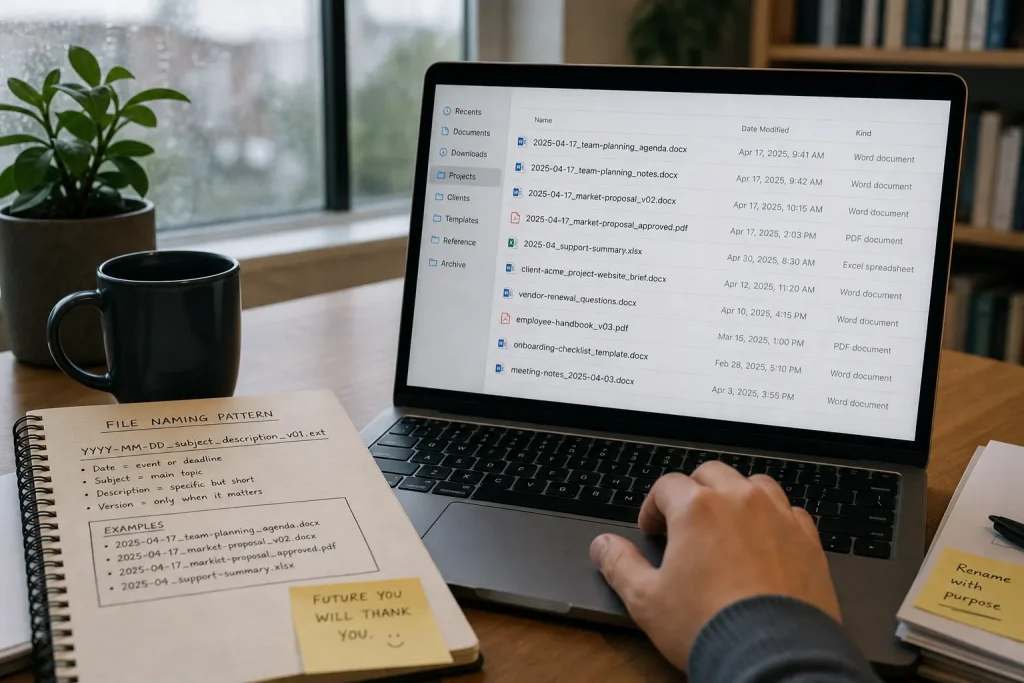
A file named final-new.docx asks Future You to remember a decision that Present You did not record. A useful filename carries enough context to make that decision visible: when the file belongs, what it contains, and, when needed, which version it is. You can establish that habit over a week without changing apps or reorganizing your entire computer.
The aim is not to make every filename elaborate. It is to make related files sort together and distinguishable at a glance. Choose a pattern you can type quickly, use it for new work, then update the files you reach for most often.
Choose a pattern before renaming files
Start with three elements: a date, a subject, and an optional version marker. Put them in the same order every time. For dated work, a useful pattern is YYYY-MM-DD_subject_description_v01.ext. The date uses year, month, and day in that order, so ordinary alphabetical sorting also sorts dates in sequence. Use hyphens in the date and underscores or hyphens between the larger parts; either is fine if you stay consistent.
Not every file needs all three elements. A reference document that changes rarely may need a subject and a short description, not a version count. A meeting agenda may need its date because the subject repeats. Let the file’s likely future use decide what belongs in the name.
Keep descriptions specific but short. “Meeting notes” is a broad label. “Vendor renewal questions” tells you more. Include the project or person when that detail will help separate similar files, while avoiding private information in names that may appear in shared folders or device notifications.
Before changing anything, write your pattern in a plain text note or on a small card near your desk. A rule you can see is easier to use than one you have to reconstruct.
Use the first day to define useful dates
On the first day, decide what the date means. It could be the day a document was created, the date of a meeting, or the deadline it supports. Pick the meaning that will help you search later, and use it consistently within a project. Mixing creation dates with event dates makes a tidy-looking name less useful.
Use the full year, month, and day when a precise date matters. For recurring work, a month can be enough if the exact day adds no value, but keep the format stable within that group. Avoid formats such as 3-4-25: different people and settings can read the order differently, and a future self is not always a reliable interpreter.
Say you are preparing notes for a recurring team meeting. You decide that the date in the filename will mean the meeting date, not the day you typed the notes. A file called 2025-04-17_team-planning_agenda.docx will then sit beside other agendas in date order, even if you drafted it earlier.
Use the second and third days to name the subject
On the second day, apply the pattern to files you create or save. Name the main subject first, then add a detail that separates it from neighboring files. Prefer recognizable words over abbreviations that only make sense in the moment. “Q3” may be clear for a quarterly review; a private shorthand like “blue run” may not survive the week.
On the third day, check whether the order makes sense when several files share a subject. Put the stable grouping before the changing detail. For example, a set of documents for one client might use client-name_project_document-type, with the date added where it helps. Avoid making the folder name do all the work: a file may later be emailed, downloaded, or moved on its own.
Use ordinary words and a modest separator. Skip decorative punctuation, long strings of spaces, and symbols that behave differently across operating systems. If a name must be shared with someone else, keep it easy to read aloud and easy to type.
Use the fourth day to decide when a version matters
On the fourth day, choose a simple rule for versions. Use a marker such as v01 only when you need to preserve distinct drafts or handoffs. Increase the marker when a meaningful revision creates a file you may need to identify separately. Do not create a new version every time you correct a typo unless the file’s history matters to your work.
Words such as “final,” “latest,” and “new” describe a moment, not a stable identity. If a recipient needs a clear handoff, use a version marker or a specific status such as “approved” only when that status is accurate. Keep the editable working copy distinct from an exported PDF when both are useful.
Imagine you are revising a proposal and need to keep the draft sent for review separate from the approved copy. You save the review file as 2025-04-17_market-proposal_v02.docx, then name the approved export 2025-04-17_market-proposal_approved.pdf. The expected result is that a search for the proposal shows both files and makes their roles apparent without opening them.
Use the fifth day to handle recurring and undated files
On the fifth day, look at files that do not belong to one calendar event: templates, policies, reference sheets, and reusable forms. Give them a stable subject and a description of their purpose. Add a date only when it identifies a revision or a period the document covers. A blank template does not need a made-up event date.
For recurring material, choose whether the file represents a period or a particular occurrence. A monthly report might use 2025-04_support-summary; notes from a specific call might use the full meeting date. This distinction helps you avoid two files with nearly identical names and no clear reason for the difference.
If the content is sensitive, keep personal details out of the filename. A neutral project code or broad subject can provide enough context while reducing what appears in search results, file previews, or shared links.
Use the sixth day to repair only the useful backlog
On the sixth day, do not attempt to rename every file you own. Start with the active project folder, downloads you still need, and documents you regularly reopen. Sort by name, notice which labels are ambiguous, and rename only the files where a better name will make a real search easier.
Before a bulk rename, confirm the selected files and preserve their extensions, such as .docx, .pdf, or .png. If other people use a shared folder, tell them before changing names they may have bookmarked or linked. Keep a backup when the files are important, and ask a qualified IT professional for help if a shared system’s naming rules are unclear.
Make one small decision at a time: add a missing date, clarify a vague subject, or mark a genuine version. Avoid rewriting the same information already obvious from a carefully named folder unless the file might leave that folder.
Use the seventh day to make the habit stick
On the seventh day, review the names you added during the week. Can you tell what each file is without opening it? Do related files sort together? Are version markers used only where they help? If a rule caused hesitation, simplify it now rather than expecting yourself to remember an exception later.
From then on, name a file when you create or save it, not during a future cleanup session. For a quick capture, use a short, recognizable subject and add detail when you know more. A consistent filename does not replace folders, search, or backups. It gives each of them a clearer clue to work with.
Keep the pattern somewhere easy to consult, and revisit it when your work changes. Future You does not need a perfect archive. Future You needs a name that makes the right file look like the right file.