From Inbox to Next Action: A Lightweight Email Triage
A repeatable way to sort incoming email into replies, tracked tasks, useful reference, and messages you can remove—without turning the inbox into a second task manager.
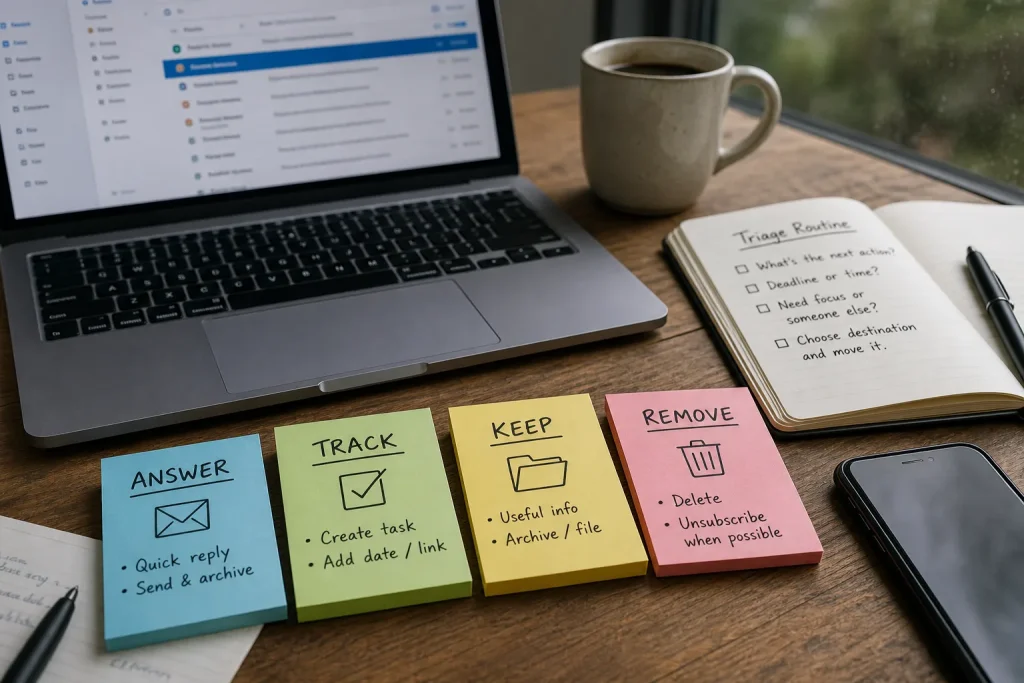
An email asking you to review a draft by Thursday is a task with a deadline, not merely an item to leave in the inbox. Give each message one destination: answer, track, keep, or remove. The routine should be brief enough to repeat on an ordinary workday.
Sort by the next action, not the sender
Ask, “What needs to happen because this message arrived?” The sender and subject provide context, but they do not determine the destination. A colleague’s message might need a reply, a calendar entry, or no further action.
Use four outcomes:
- Answer: If the message needs a reply you can complete now without research, send it and then archive or file the thread. If the reply needs more work, create a task instead.
- Track: If the message creates work that needs time, a reminder, or another person’s input, record a specific action in your task app or project board. If it is tied to a particular time, use your calendar.
- Keep: If the message has useful information but requires no action, archive it or file it where you can search for it. If you cannot identify a likely future use, consider removing it.
- Remove: If the message is finished, irrelevant, redundant, or easy to retrieve again, delete it. If a policy or obligation may require keeping it, do not delete it until you have checked the applicable guidance.
These are decisions, not a demand for elaborate folders. Gmail labels and archive, or Outlook categories and flags, can support the routine. If your mail app offers no suitable system, use a simple reference folder and a separate task list. Keep asking: what happens next, and where will I see it?
Answer only when the reply is genuinely small
“Answer” is for messages you can finish in the current pass. Confirming a meeting time or sending a short decision may fit. A reply that requires checking a spreadsheet, asking a teammate, or drafting a careful explanation is work, even if the email looks short.
Unread status is a poor task manager. It mixes unfinished work with messages you have not considered, and becomes less informative as the inbox grows. If a reply needs a separate work session, record that action rather than leaving the message unread as a makeshift reminder.
Say you receive a note asking whether a draft can be shared with a client. If the approved version is ready, reply with its link and archive the thread. If approval is pending, create a task to check the draft and reply after that check. In the second case, the email is not answered merely because it remains visible.
Send the reply, then clear the message from the action queue.
Move real work into a place built to track it
Use “track” when the next action is too substantial to complete during triage, depends on another person, or has a date you need to remember. Put it in a tool you already check: a task app, project board, or calendar when the work is tied to a specific time.
Make the task specific enough to act on. “Email about the launch” records a topic, not the work. “Review the launch copy and send edits to Maya” names an action and an outcome. Add a due date when the message provides one, or choose a realistic follow-up point. Do not invent urgency to make a task feel official.
Include a link to the message or thread if your task tool supports it. If links do not work across your devices or accounts, note the sender and subject. Once the task exists, archive or file the email unless you have a specific reason to keep it in view. One reliable reminder is usually easier to trust than two competing ones.
Write the next physical action, not a vague topic.
Keep reference separate from unfinished work
Some messages are useful later but ask nothing of you now: a receipt, a policy note, a travel confirmation, or instructions for another task. Keep them in a searchable archive, a small set of folders, or a label such as “Receipts” or “Travel.”
Avoid creating a folder for every project unless you routinely retrieve messages that way. Too many categories turn filing into its own task, and the email client will not object. It has no sense of proportion.
When a reference message belongs to an active project, save its link or relevant detail where the project work already lives. A vendor’s setup instructions, for example, may be easier to find beside the related task than in a folder you have to remember to search. Keep what supports a plausible future lookup; “perhaps someday” can become a filing cabinet with no index.
Archive finished conversations after extracting the action or reference you need. Archive means “not in the inbox,” not “destroyed.” If a specific filing location or retention policy applies, follow it rather than treating archive as a substitute.
Remove messages that have no useful next life
Delete messages that are finished and unlikely to be useful, such as duplicate notifications, expired announcements, routine updates with no lasting value, and obvious junk. If a recurring message is no longer useful and comes from a legitimate sender, unsubscribe when the option is clear. For suspicious messages, use your mail service’s spam or phishing controls rather than clicking links inside the message.
Be cautious with messages about payments, contracts, account access, or workplace records. Rules for retaining them can depend on your role, employer, and location. Follow applicable organizational policy, and consult a qualified legal or financial professional if an obligation is unclear. A clean inbox is not a reason to discard a record you may need to keep.
Deletion is not the only way to reduce clutter. Unsubscribe, filter, or mute a noisy thread when appropriate. A filter can route predictable receipts or automated alerts away from the inbox while leaving them searchable. Check a new filter’s behavior before relying on it; an overenthusiastic rule can hide a message you wanted to see.
Run the same short pass each time
Work through messages in order, opening each one when you are ready to decide. For each message:
- Check whether it asks for a response, a task, future reference, or nothing further. If a reply is brief and complete, answer it; otherwise, choose the appropriate next destination.
- Check whether the message gives a deadline or a time-specific appointment. If it does, add the due date to a task or the appointment to your calendar; if it does not, set a realistic follow-up point only if one is needed.
- Check whether the work needs a separate block of attention or another person’s input. If it does, create a task with a verb, an outcome, and any relevant owner; if not, finish the small action during triage or choose another destination.
- Check whether useful reference remains after the action is captured. If it does, archive or file it where search will work; if not, remove it when no retention requirement applies.
- Check whether the message is unwanted or suspicious. If it is a legitimate recurring message you no longer need, unsubscribe or filter it; if it looks suspicious, use spam or phishing controls instead.
- Check whether a payment, contract, account-access, or workplace-record message may be subject to a retention rule. If the applicable policy is clear, follow it; if it is unclear, keep the message while you seek guidance from the appropriate organizational contact or a qualified professional.
Then stop. Triage is not an invitation to complete every task you uncover. Its job is to make the next action visible and put it somewhere you are likely to notice. If a message reveals a large piece of work, capture it and return to the pass.
Imagine you receive four messages: a meeting change, a request to edit a draft, a delivery receipt, and a recurring product update. The meeting change gives a new time, so you update the calendar and archive the thread. The draft request names a Thursday deadline, so you create a task called “Review draft and send edits,” attach the thread, and archive the email. The receipt may be needed for reference, so you file it in a searchable receipts folder. The product update is from a legitimate sender and no longer useful, so you unsubscribe. The result is an inbox with fewer loose reminders, a calendar entry for the appointment, and a task that still shows the work owed.
Review the handoffs before you stop
Scan the action list you just created. Check that each task has a verb, an owner if someone else must act, and a date when timing matters. If a message is awaiting another person and the work could stall, add a follow-up point. This is a quick check, not a second pass through every email.
If the task list is already crowded, do not add more inbox labels. Decide what can be declined, deferred, delegated, or broken into a smaller action. An email delivers a request; it does not decide your capacity.
Keep the system modest: a few stable destinations, one task list, and a reference method you can search. Before deleting a message with possible retention implications, check the policy that applies to you. A little restraint at that point is cheaper than reconstructing a record later.