Laptop or Tablet for a One-Bag Workday?
Choose the device that handles your actual workday, not the one that looks lighter on a shelf. Compare typing, files, connections, and the small accessories each option needs.
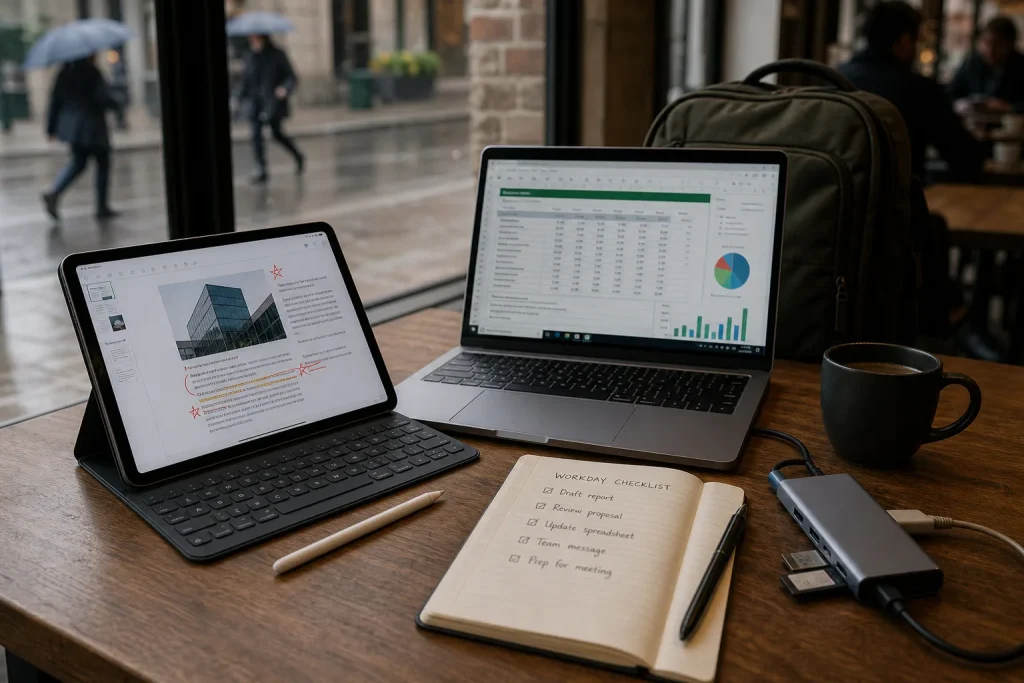
A tablet can make a compact work bag feel lighter, but that advantage disappears if every task needs an extra keyboard, adapter, or workaround. Choose by the work you expect to do away from your desk: the device that handles your routine with the fewest compromises is usually the better one-bag choice.
1. Start with the work you cannot postpone
Write down the tasks that must be possible during a typical day out. Separate them from tasks that would merely be convenient. A laptop often suits days built around drafting, spreadsheets, browser-based work tools, and several open windows. A tablet can suit reading, annotating, sketching, reviewing documents, and short bursts of communication.
The distinction is not that one device can do a task and the other cannot. Tablets can run full office apps, and laptops can handle handwritten notes with compatible equipment. The question is how much friction the task brings along. If you routinely edit a long document while checking source material, a laptop keyboard and window arrangement may save repeated changes of context. If most of the day is spent reviewing PDFs and writing occasional replies, a tablet may keep the setup simple.
Say you expect to review a proposal, mark up a PDF, and send a few messages from a library. On a tablet, a stylus and a reliable PDF app may fit those tasks naturally. If the same day also includes revising a long report and updating a complex spreadsheet, a laptop is more likely to keep the work moving without accessory juggling.
List the tasks that would cause trouble if you had to leave them unfinished.
2. Decide how much typing the day demands
A touchscreen keyboard is adequate for short replies, search terms, and quick notes. It is less comfortable when the work involves sustained prose, careful editing, or frequent keyboard shortcuts. A physical keyboard improves a tablet’s typing experience, but it also occupies space and needs to be packed, charged, or attached securely.
Laptop keyboards are ready when the lid opens. That matters if you write in short intervals or move between locations, where assembling a stand, keyboard, and tablet can feel like a small office-building exercise. A tablet keyboard case can reduce setup time, though its angle, key spacing, and trackpad may not suit everyone. Try the exact combination you plan to carry before relying on it for a full workday.
Consider the rest of your input. A trackpad or mouse can help with selecting text and manipulating spreadsheets. A stylus is useful for handwriting or markup, but it does not replace a keyboard for long-form writing. If your work depends on keyboard shortcuts, check which ones the tablet’s operating system and apps support.
Match the keyboard to the hours you expect to type, not to the hours you hope to type.
3. Check the apps and files you actually use
Before choosing a device, open the specific apps that hold your work: the office suite, project platform, password manager, communication tools, and any specialist software. Compare their desktop and tablet versions. Some tablet apps offer a streamlined interface but omit a control, export option, or workflow you rely on. A browser version may fill the gap, but it may behave differently from the desktop app.
File handling deserves a close look. Can you open attachments from your mail app, edit them in the intended program, and save the finished versions where your team expects them? Can you attach a file from cloud storage without making a second copy that is hard to identify? If your work involves local files, removable storage, or specialized formats, confirm that the device and apps support the full route from opening to saving.
A laptop often offers familiar file browsing and broad desktop software support. Tablets have improved file management, but app-to-app handoffs can still vary. Cloud storage can smooth the process, provided the files are available offline when needed and the account permissions allow the intended edits.
Try one representative file from start to finish on each candidate device. The finished file should land in the right place with a name you can recognize.
4. Count the connections your work requires
Make a short list of equipment you expect to connect: an external display, wired headphones, a camera card reader, a USB drive, an Ethernet adapter, or a presentation clicker. Then check the device’s ports and the operating system’s support for those accessories. A tablet may handle common peripherals well, but a laptop can be simpler when several devices need to work at once.
A USB-C hub can give a laptop or tablet additional ports. It also adds another item to pack, and compatibility can depend on the device, display, and accessory. If you rely on a wired connection or a particular monitor, verify that the adapter carries the signal and functions your setup needs. Wireless connections can reduce cables, but they are not a useful substitute if the venue’s network or equipment is unreliable.
For a workday that involves only Wi-Fi, Bluetooth headphones, and a charger, a tablet may have all the connections required. A day involving a projector, external storage, and a wired network tilts toward a laptop or a tablet paired with a known, compatible hub. Keep the hub with the device; an adapter left at home is an elegant object with limited professional value.
5. Account for the complete kit, not just the screen
Compare what you will carry together: device, keyboard, charger, cables, stylus, protective case, and any hub. A tablet on its own may be compact, yet a keyboard case and stand can narrow the difference. A laptop may need fewer separate parts because its keyboard and trackpad are built in. The right comparison is the complete working kit, not two bare devices on a store shelf.
Think about how the kit behaves between locations. Does the tablet keyboard stay attached in your bag? Can the laptop charger serve your phone as well, if its power output and connectors are suitable? Is there a simple place to put a stylus so it does not migrate to the bottom of the bag? These details affect how quickly you can start and pack up.
Imagine your workday includes a train ride, a meeting room, and a shared desk. A tablet with a keyboard case and compact charger might be easier to move between stops than a laptop plus separate accessories. If you need to connect to a meeting-room display and edit documents at the shared desk, a laptop and one compatible USB-C hub might instead make the kit simpler. The expected result is not a universal winner; it is a setup with fewer missing pieces at the moment work begins.
Put every required accessory beside the device before judging its portability.
6. Plan for offline work and connection limits
A compact work kit still needs a plan for weak Wi-Fi. Identify which files and apps can work offline, and make important documents available before leaving a dependable connection. Cloud-based editors may keep recent work accessible, but availability and syncing behavior vary by app and account settings.
Check how you would handle an unexpected change: a canceled meeting, a document that must be revised on the move, or a long wait without reliable internet. A laptop may be more flexible for local software and files. A tablet may be entirely sufficient if its essential apps support offline access and your documents are already stored on the device.
Also consider how you connect when away from familiar networks. If you use a phone hotspot, confirm that your device can join it easily and that the work apps behave sensibly on a mobile connection. Avoid assuming that a tablet’s cellular option is necessary if your routine already includes dependable tethering, or that a laptop’s Wi-Fi will be available everywhere.
Before leaving, open the documents you may need and confirm that they are available without a network.
7. Choose based on the day that repeats
After comparing tasks, typing, files, connections, and accessories, look for the option that handles the most important recurring work without special arrangements. Choose a laptop if sustained typing, desktop software, multitasking, or varied peripherals define the day. Choose a tablet if reading, annotation, handwriting, and short text tasks dominate, and its apps support the files and services you use.
If your routine is genuinely mixed, start with the most demanding task that regularly happens away from your desk. A device that handles that task comfortably can usually handle lighter ones. The reverse is less reliable: a beautifully portable setup does not become a good spreadsheet workstation because the bag is well organized.
Do a final rehearsal with the exact device and accessories you intend to carry. Open a typical document, edit it, save it in the right location, connect any essential equipment, then pack everything away. If that sequence feels straightforward, the kit fits your workday. If it depends on a missing adapter or an app feature you have not confirmed, revise the kit before it becomes tomorrow’s surprise.
Choose the device that lets you begin the real work with the fewest extra decisions.